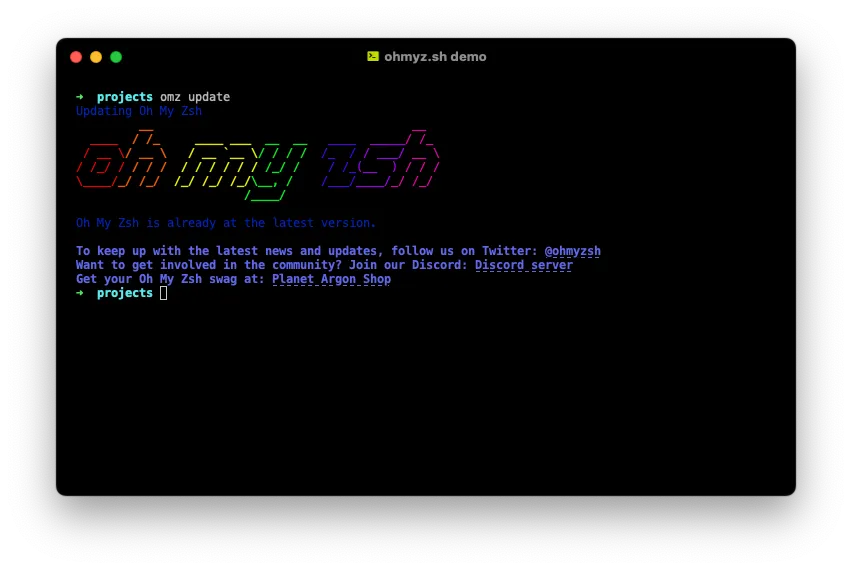
#1. Install Zsh Shell
To install the Zsh shell, run the following command:
sudo apt install zsh*#2. Set Zsh as the Default Shell
chsh -s $(which zsh)#3. Install Oh My Zsh
sh -c "$(wget https://raw.githubusercontent.com/ohmyzsh/ohmyzsh/master/tools/install.sh -O -)"#4. Theme Favorite
themes oh my zsh are a great way to customize the look and feel of your terminal.
Select your favorite theme from the list below and set it in your ~/.zshrc file by changing the ZSH_THEME variable:
gnzh, duellj, darkblood, gnzh, robbyrussell, agnoster#5. Customization plugins
plugins=(git zsh-autosuggestions zsh-syntax-highlighting zsh-history-substring-search you-should-use auto-notify eza grc sudo colorize)#Plugins Useful Links and Installation
- git (built-in)
- zsh-autosuggestions
- zsh-syntax-highlighting
- zsh-history-substring-search
- you-should-use
- auto-notify
- eza
- grc
- colorize
#6. How to Install Plugins
Open terminal and run the following commands one by one to install the plugins:
-
zsh-autosuggestions, zsh-syntax-highlighting, zsh-history-substring-search, you-should-use
-
Run the following commands to clone the repositories:
git clone https://github.com/zsh-users/zsh-autosuggestions ${ZSH_CUSTOM:-~/.oh-my-zsh/custom}/plugins/zsh-autosuggestions
git clone https://github.com/zsh-users/zsh-syntax-highlighting.git ${ZSH_CUSTOM:-~/.oh-my-zsh/custom}/plugins/zsh-syntax-highlighting
git clone https://github.com/zsh-users/zsh-history-substring-search ${ZSH_CUSTOM:-~/.oh-my-zsh/custom}/plugins/zsh-history-substring-search
git clone https://github.com/MichaelAquilina/zsh-you-should-use.git ${ZSH_CUSTOM:-~/.oh-my-zsh/custom}/plugins/you-should-use
Then, add the following lines to your ~/.zshrc file to enable the history substring search functionality:
# history substring search options
bindkey '^[[A' history-substring-search-up
bindkey '^[[B' history-substring-search-down
Dont forget to install eza, grc and colorize by running the following command:
- eza is a modern replacement for ‘ls’ command with more features and better aesthetics.
- grc is a generic colorizer that can be used to add color to the output of various commands.
- colorize is a tool that adds color to the output of text files based on predefined styles.
To install eza, grc, and colorize, run the following command:
sudo apt install eza grc colorizeand add the following line to your ~/.zshrc file to set the colorize style:
ZSH_COLORIZE_STYLE="colorful"#7. Apply Changes
After making changes to your ~/.zshrc file, apply the changes by running:
source ~/.zshrcReferences: